
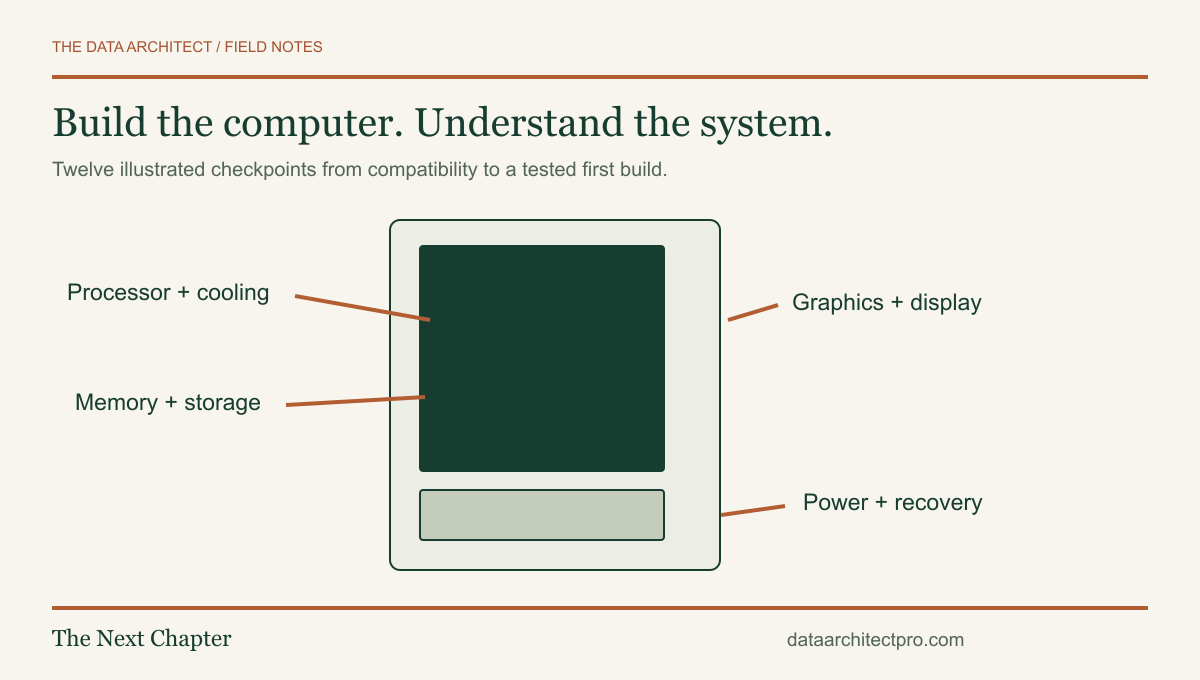
Building a PC is a sequence of compatibility checks, careful assembly and verification. The goal is not just a machine that lights up. It is a computer that fits your workload, starts reliably and leaves you with enough understanding to maintain it.
Before you start: choose the work this PC needs to do
Write down your main applications, monitor requirements, storage needs and upgrade plans. Include the operating-system license, backup storage and peripherals in the budget. For a business workstation, consider who will support the machine and how downtime affects work; a supported prebuilt system may be the more practical choice in some environments.
This guide describes a conventional desktop assembled from compatible parts. It is not a universal manual for proprietary office PCs, laptops, every CPU socket or custom liquid cooling. Read the motherboard, case, cooler, graphics-card and power-supply instructions before assembly. If their sequence differs from this overview, follow the instructions for your hardware.
Keep mains power disconnected while installing or reseating components. Work on a stable, clean surface, manage static with appropriate ESD precautions, and handle boards by their edges. Never open the power supply itself. Stop if a part is damaged or a connector requires unexplained force.
01. Check that the parts belong together
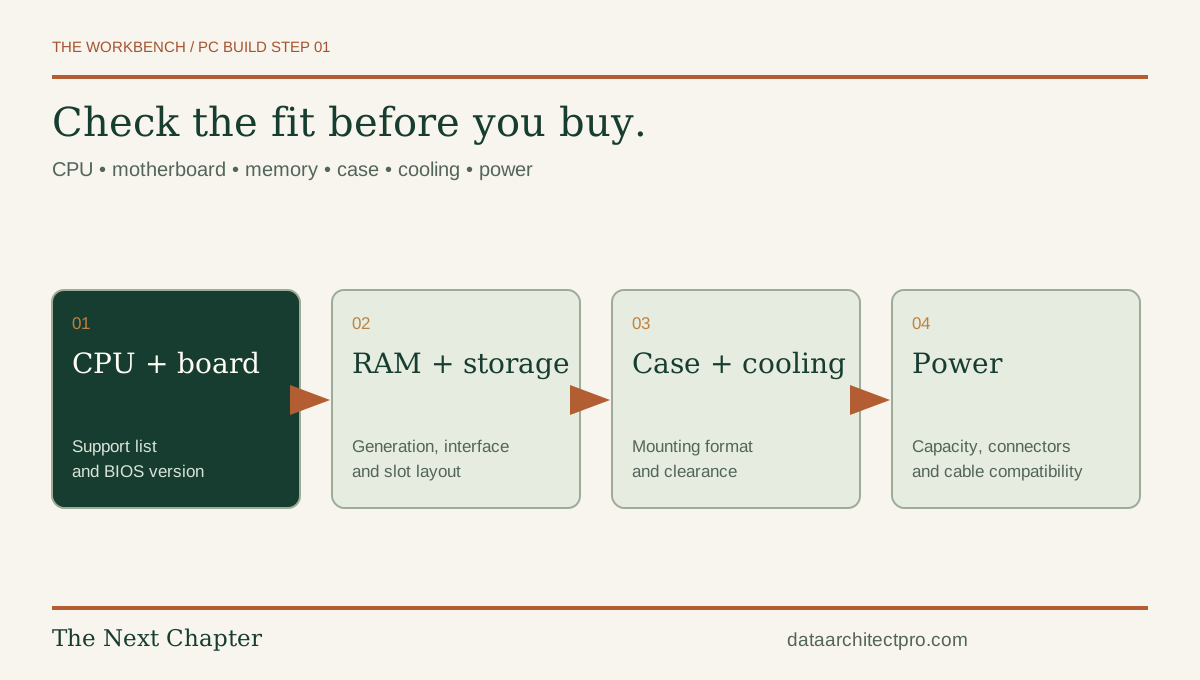
Confirm the CPU appears on the motherboard’s support list, including any minimum BIOS version. Match the memory generation and supported configuration. Check the case’s motherboard format, graphics-card length, cooler height and radiator positions if relevant.
Confirm storage interface and slot availability; an M.2 shape alone does not establish protocol compatibility. Some board slots share lanes or disable other ports. Check the manual. Choose a power supply with appropriate capacity, connectors and physical fit for the complete build. Record the exact model of every component in the PC build planning checklist.
02. Prepare the workspace and the manuals
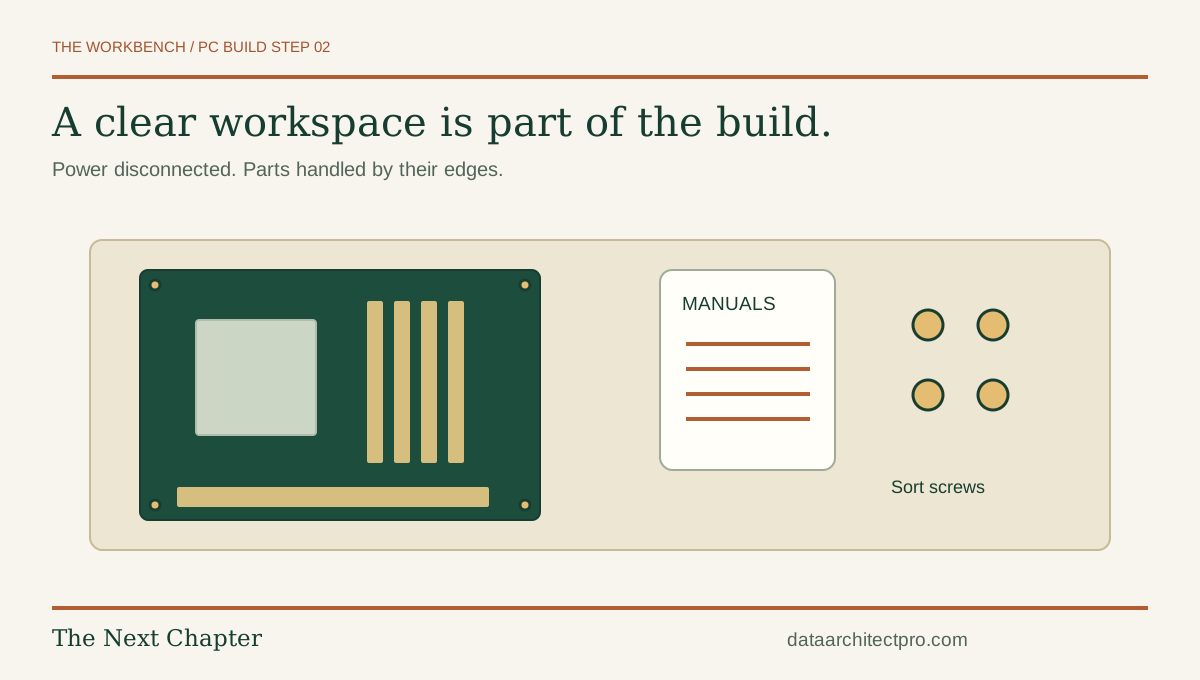
Unpack only what you need for the next stage. Keep liquids away, separate screws by type and avoid working on carpet. Use a suitable ESD setup according to its instructions. Place the motherboard on an appropriate nonconductive work surface such as its plain cardboard box, not on the outside of its antistatic bag.
Identify the motherboard diagrams for CPU installation, recommended memory slots, fan headers, front-panel wiring and power. Knowing where these are before assembly prevents awkward searching while a component is partly installed. Do not connect the wall power yet.
03. Install the processor without forcing it
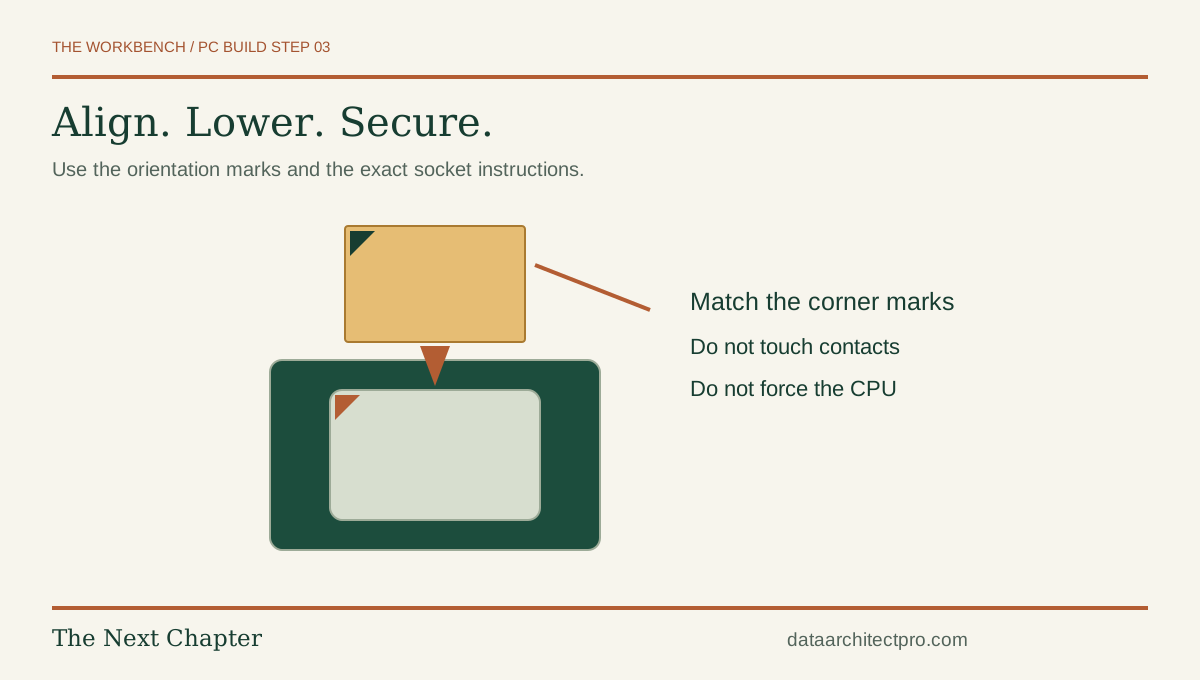
Open the socket retention mechanism exactly as the motherboard instructions describe. Hold the processor by the edges and align its orientation mark and notches with the socket. Lower it into position without dragging it across contacts. It should sit correctly before you secure the retention mechanism.
Some processors have exposed pins; other platforms place delicate contacts in the socket. Do not touch or straighten them casually. Preserve any socket cover required for later transport or warranty service. If the processor will not sit correctly, stop and recheck compatibility and orientation before closing anything.
04. Install RAM in the recommended slots

For a two-module kit on a four-slot board, use the pair specified in the manual rather than assuming the nearest two slots are correct. Open the movable retention clips, align the notch and press evenly as directed until the module is fully seated and the applicable clips engage.
Do not mix incompatible memory generations or force a reversed module. Check both ends. Memory that looks almost installed can cause a no-boot condition. Leave optional memory overclocking profiles off for the first baseline boot; establish normal operation before tuning.
05. Fit the primary storage drive
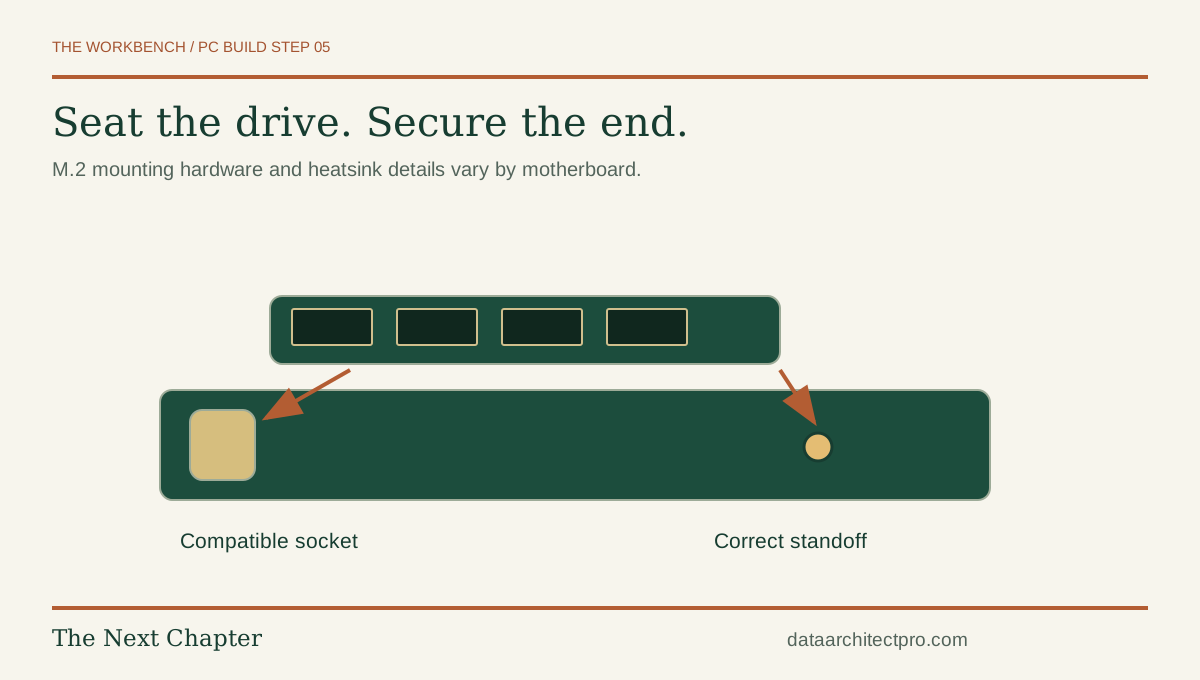
For a compatible M.2 drive, locate the correct slot, remove its cover if present and set the standoff or retention mechanism for the drive length. Insert the drive as the board manual shows, lower it gently and secure it without overtightening. Remove protective film from a heatsink’s thermal pad if instructed; do not peel labels off the drive arbitrarily.
For a SATA drive, mount it in the appropriate bay and connect both SATA data and compatible PSU power. Check whether using an M.2 slot disables a SATA port. Plan which drive will receive the operating system so you do not accidentally erase another drive during installation.
06. Install the cooler and connect its fan
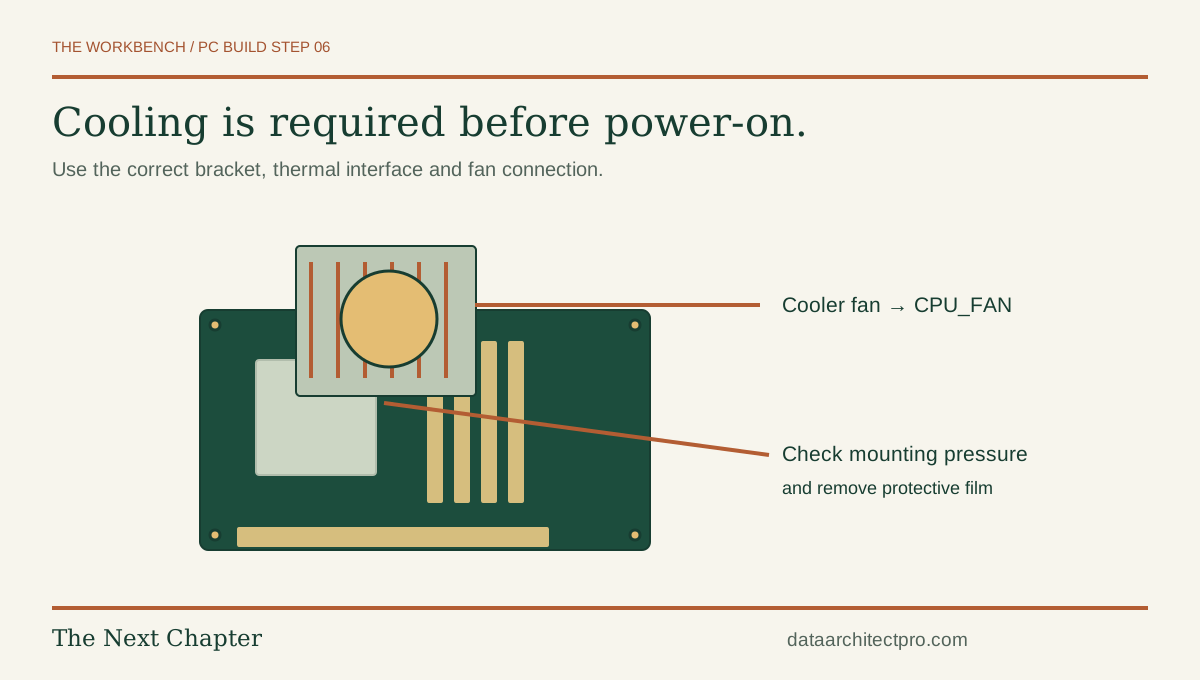
Fit the correct brackets or backplate. Remove any protective film from the cooler’s contact surface. If thermal compound is already applied, do not add another layer automatically. Otherwise use the cooler manufacturer’s recommended compound amount and pattern.
Secure the cooler in the specified sequence with even pressure. Connect the fan to the designated CPU fan header. Liquid-cooling systems need their manufacturer’s pump, radiator and fan instructions as well. Never run the processor without its properly installed cooling solution. Check that the cooler does not obstruct memory, case panels or required connectors.
07. Mount the motherboard on the correct standoffs
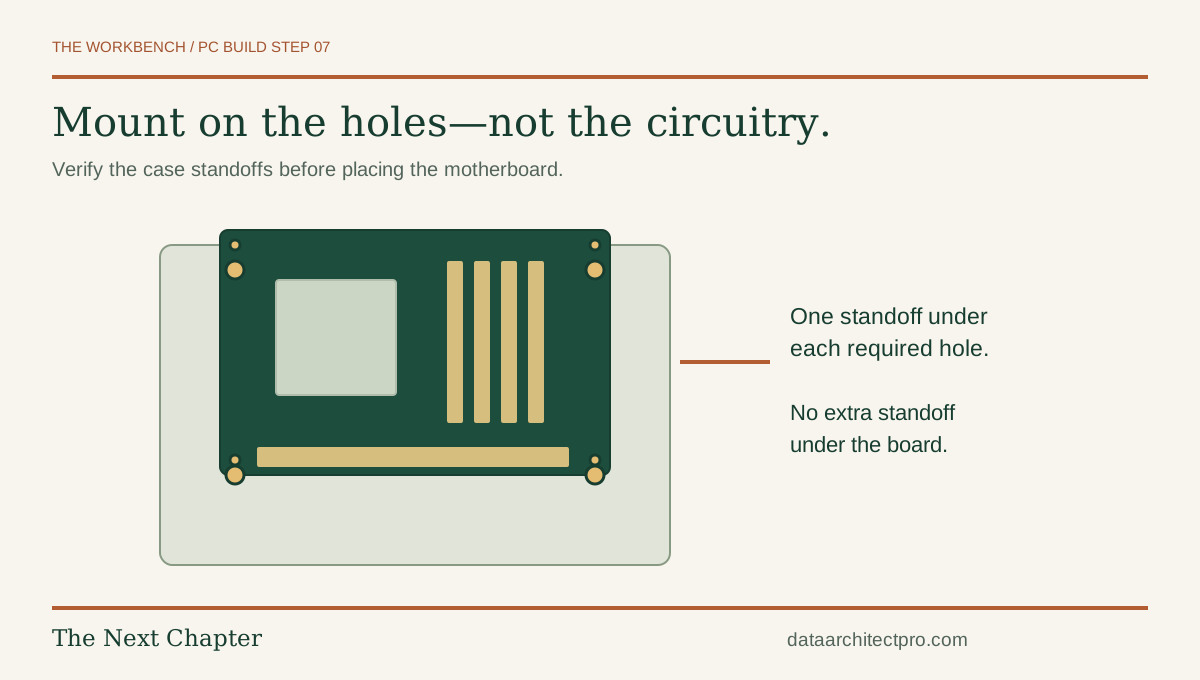
Prepare the case, route any difficult cables and install a separate rear I/O shield if your board requires one. Check the standoffs against the board’s mounting holes. Remove misplaced standoffs and fit missing ones using the case’s instructions.
Lower the board carefully, align the rear ports and secure it with the correct screws. Tighten until held firmly, without excessive force. Check that no loose screws remain underneath or inside the case. Assembly order varies: a large cooler or compact case may require a different sequence for access.
08. Install the PSU and use its compatible cables
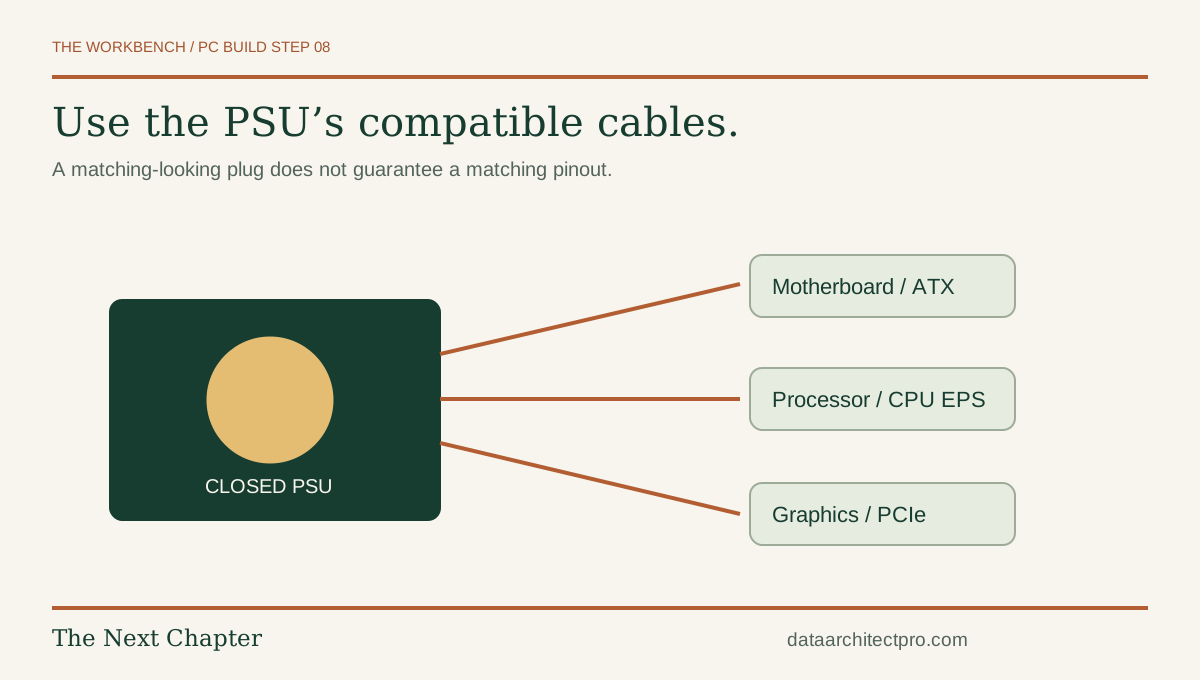
Mount the power supply with the fan facing an appropriate ventilated opening, as the case and PSU instructions specify. Keep its switch off and its AC cable disconnected while wiring. Use the cables supplied with that unit, or cables explicitly listed as compatible with its exact model.
Corsair explains why modular PSU cables are not universally interchangeable, even when plugs look similar. Do not reuse old modular cables on that basis. CPU/EPS and PCIe graphics power connectors serve different purposes; identify the cable labels and manuals before connecting them. Never open the PSU enclosure.
09. Connect motherboard power, case controls and fans
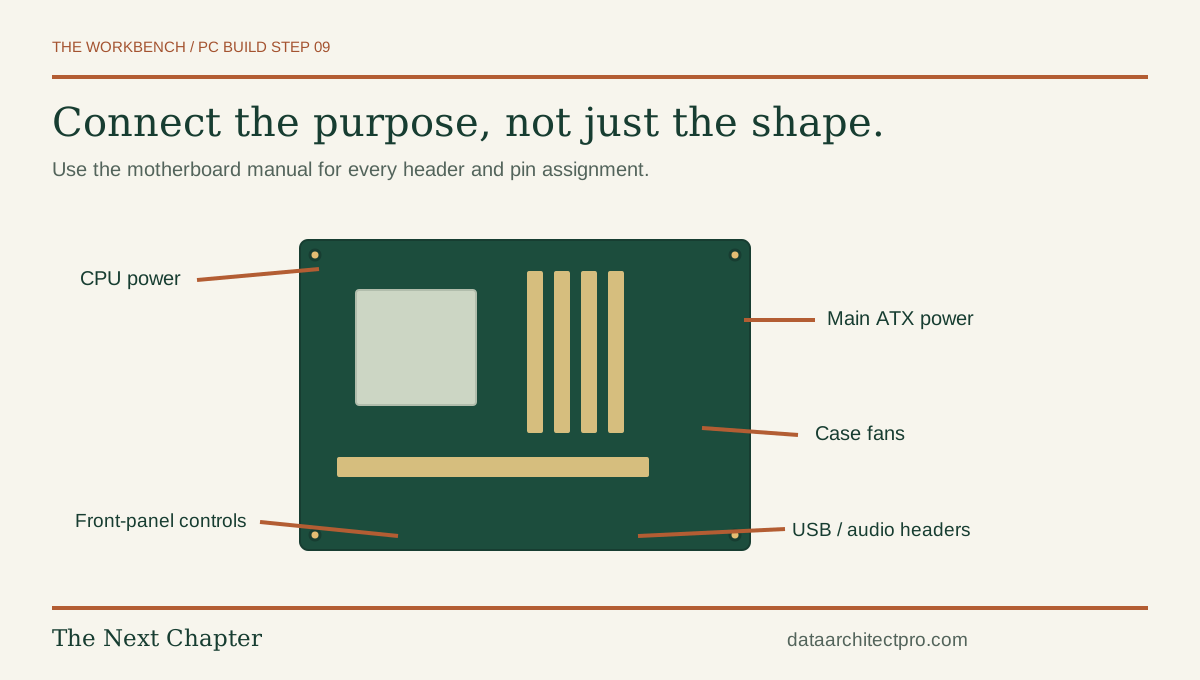
Seat the main motherboard power connector and the CPU power connection required by your board. Connect case power-switch, reset and indicator leads according to the front-panel diagram; LED polarity matters. Add the appropriate front USB and audio connections without forcing a mismatched plug.
Connect case fans to suitable headers or the supplied hub, respecting current limits and the hub’s power requirements. Keep cables clear of fan blades. If the build has lighting, check voltage and connector type carefully: a 5 V addressable RGB device must not be connected to a 12 V RGB header. Leave optional lighting disconnected if you are unsure.
10. Install graphics and connect the display correctly
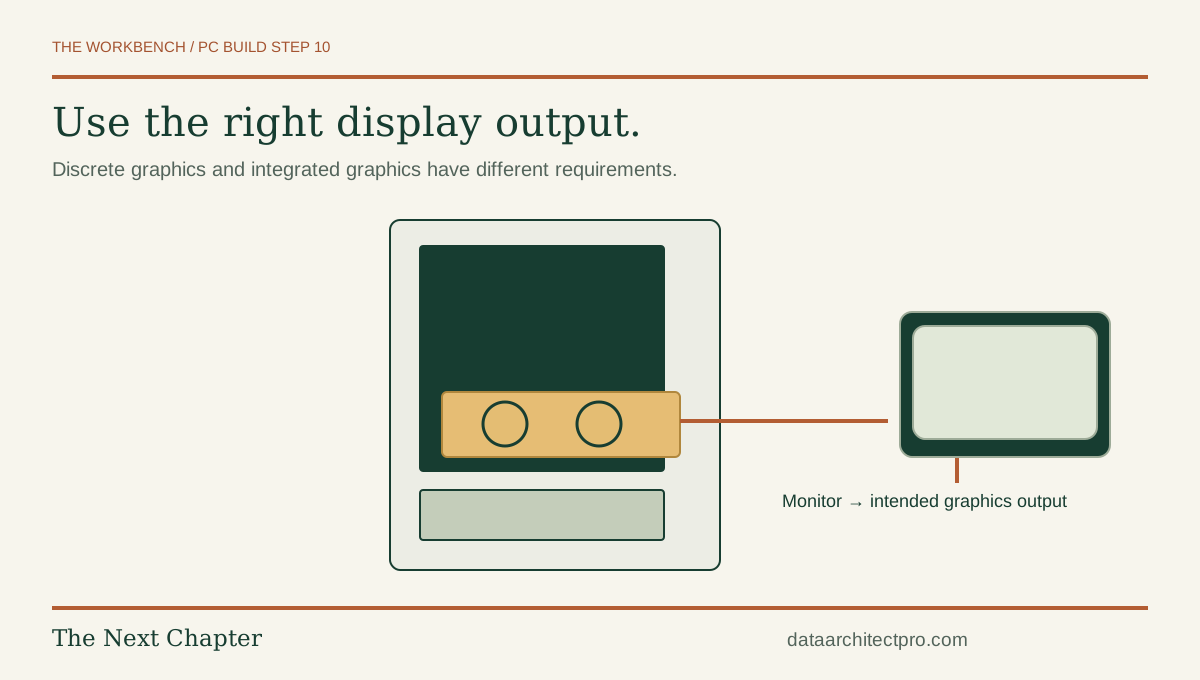
If the build uses a discrete graphics card, fit it in the slot recommended by the motherboard manual, secure the bracket and add any specified support. Connect the required graphics power cables fully. For high-power connectors, follow the card and PSU guidance on insertion, adapters and cable bend clearance.
Connect the monitor to the graphics card when it is the intended display device. If using integrated graphics, verify that the exact processor supports them and use the motherboard output. A working monitor connected to the wrong output can make a healthy new build look as though it failed.
11. Inspect the build, then check firmware
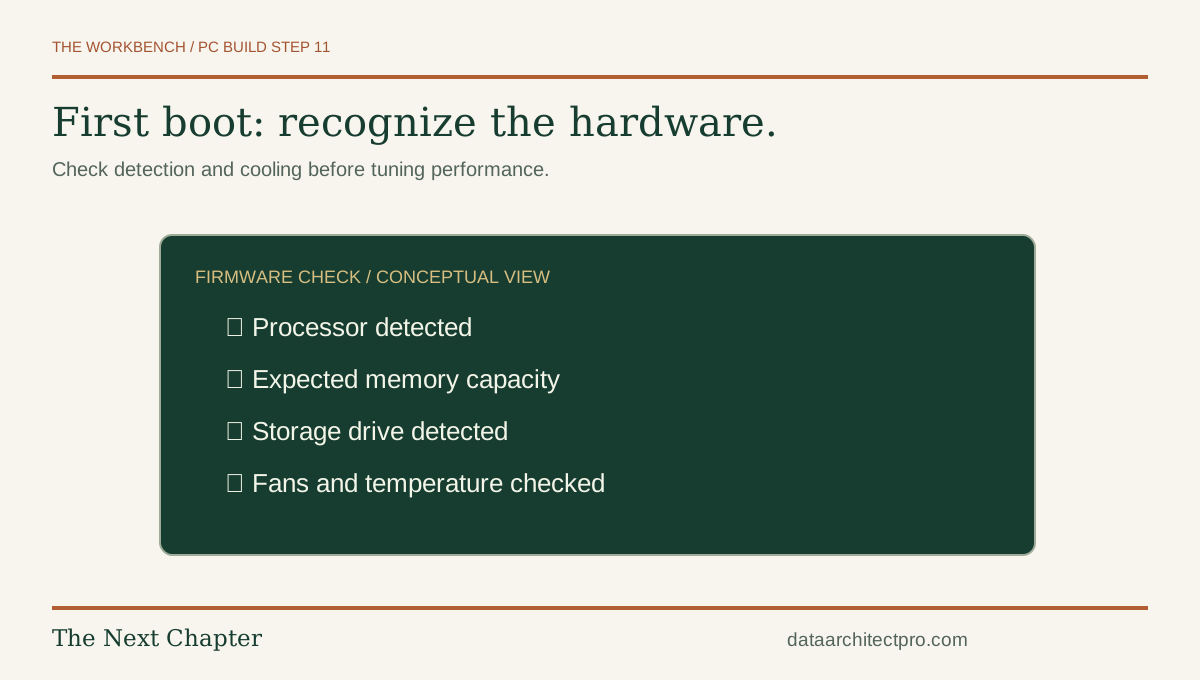
Before applying power, check every required connection, look for loose screws, confirm cooler installation and make sure fans are unobstructed. Attach the keyboard and monitor. Connect AC power, switch on the PSU and use the case power button. Enter firmware setup using the key specified by the board manufacturer.
Confirm the processor, memory capacity and storage are detected. Check fan operation and CPU temperature against the hardware manufacturer’s expectations. Initial memory training can take time; follow the board’s guidance before interrupting it. If there is no display, use its diagnostic LEDs or codes. Power down and disconnect AC before reseating parts. Avoid repeatedly powering a system that smells hot, sparks or shows damage.
12. Install the operating system and prove the computer works
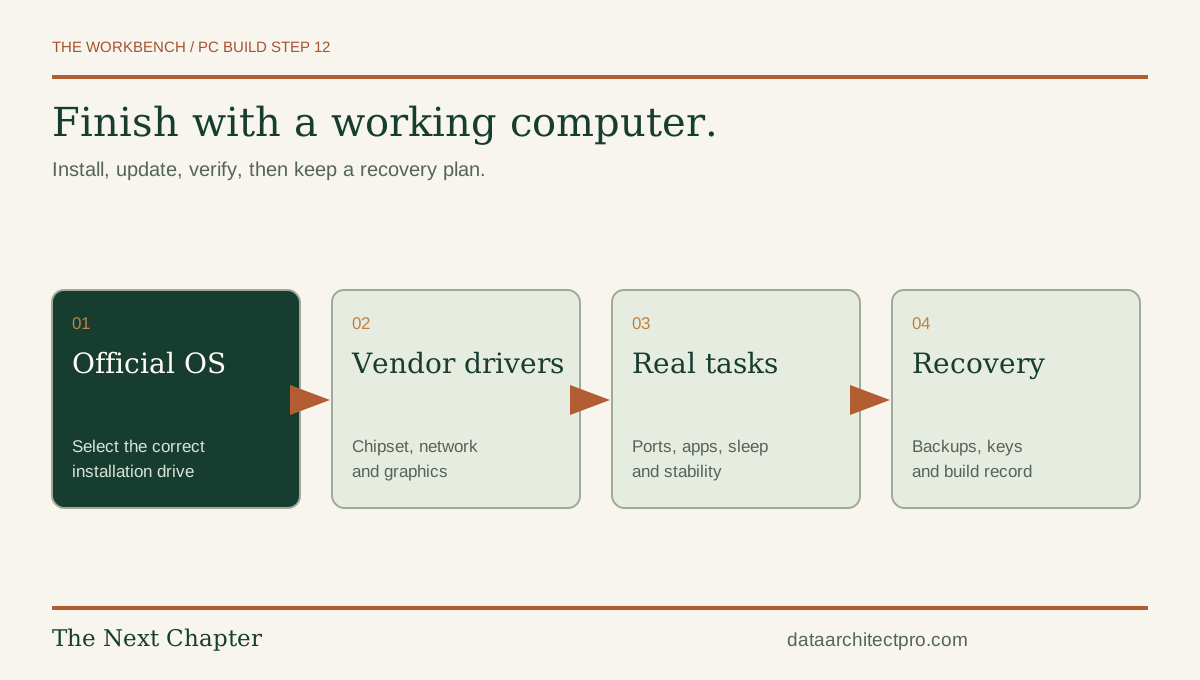
Create installation media from the operating-system vendor’s official source. For Windows, use Microsoft’s Windows 11 download page and verify current hardware and licensing requirements. Select the intended installation drive carefully; deleting or formatting partitions removes their data.
Install supported chipset, networking and graphics drivers from the relevant vendors, then apply updates. Verify audio, network access, USB ports, sleep/wake and your actual applications. Observe temperatures and stability under a sensible workload before enabling optional performance profiles. Set up backups, keep encryption recovery information securely and save your parts list, receipts and firmware version. A completed build includes a recovery plan.
If the computer does not start, make the symptom specific
No power: check the outlet, PSU switch, required power connectors and front-panel power-switch wiring. Power but no display: check monitor input, display cable location, graphics power, memory seating and board diagnostic indicators. Starts then shuts down: investigate cooling, wiring and the diagnostic information before repeated attempts.
Do not short unknown pins, bypass protections or swap in unverified modular cables. A successful fix should explain the symptom. If you cannot identify a safe next check, stop and have the assembly reviewed.
Manufacturer references for a broader comparison: Intel’s PC assembly guide and MSI’s build guide. The component manuals remain the authority for your exact hardware.
Build with a plan—and ask for help before forcing a part
The Data Architect offers IT support from the San Gorgonio Pass with remote help and on-site visits by arrangement. If you are in Beaumont, Banning, Yucaipa, Redlands, San Bernardino or elsewhere in the Inland Empire, send the intended workload and your proposed parts list to discuss a compatibility review or support scope.
Already own a computer that is not meeting your needs? Start with our diagnosis-before-upgrading guide. Sometimes the most useful next step is a repair, a configuration change or a better backup—not a box of new parts.