
A Wi-Fi icon answers one small question: your device has connected to a wireless network. It does not prove that the network can reach the internet, resolve a website’s name, or sign in to the application you need. Good troubleshooting separates those questions.
Start by finding the size of the problem
Before restarting equipment, compare two devices and two services. Does the laptop fail while a phone on the same Wi-Fi works? Do all websites fail, or only the booking system? Does a wired computer work while wireless devices struggle? Those comparisons turn “the internet is down” into a useful description.
For a Beaumont office, an interrupted video call and an unreachable shared printer could have different causes. For a Banning storefront, a working guest network does not prove the payment terminal’s network is healthy. These are examples of how to narrow a problem, not reports of local outages.
Record when it started, which people and locations are affected, the exact error and the most recent change. A new router, moved desk, changed password or installed VPN may matter. A clear timeline is often more useful than a screenshot of a spinning loading icon.
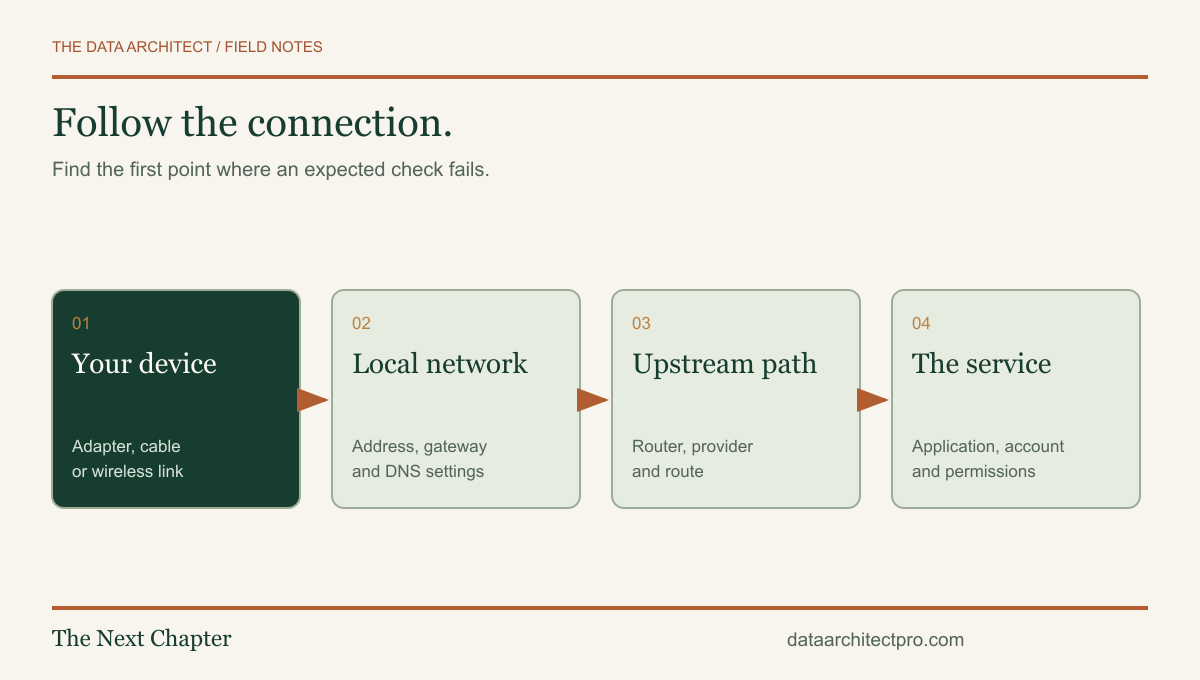
Follow the path: device, local network, gateway, service
Check airplane mode, the selected network, the Ethernet cable and whether the adapter shows a link.
Check whether the device received the expected address, gateway and DNS configuration.
Compare other devices and check your provider’s status using a separate connection.
Check the service’s status, sign-in, permissions and any VPN dependency.
Make one change at a time and retest the same task. If you change DNS, restart the router and reinstall a driver together, you lose the evidence that would tell you which action helped. Do not factory-reset business networking equipment just to see what happens: that can remove provider settings, VLANs, VPNs and other configuration you need to recover.
Three Windows checks that describe the problem
These checks observe configuration or connectivity. Run them only on a device and network you are authorized to troubleshoot. You do not need to publish their complete output; internal addresses, machine names and domain information can reveal how a business is organized.
| Check | What it tells you | What it does not prove |
|---|---|---|
ipconfig /all | The adapter’s address, DHCP details, default gateway and configured DNS servers. | That the gateway or DNS service is reachable. |
nslookup example.com | Whether the selected DNS server answers a name lookup. | That a browser, VPN or application uses the same resolver or can complete a secure connection. |
tracert example.com | Responses along the route toward a destination. | That every missing response means a broken router. Devices may filter or deprioritize diagnostic traffic. |
Microsoft documents ipconfig, nslookup and TRACERT. Use the actual gateway shown for your adapter when testing local reachability; do not assume every network uses the same router address.
Common failure points—and the clues that separate them
Weak wireless coverage: the problem follows a room or distance from an access point. Compare the same device close to the access point and, where possible, over Ethernet. A speed test alone cannot distinguish interference, poor coverage and a busy internet connection.
DHCP trouble: a device configured for automatic addressing lacks a usable lease. An IPv4 address beginning 169.254 can be a clue that it assigned itself a link-local address; it does not identify the cause. Look at the cable or wireless link, address pool and DHCP service before assigning a random static address.
DNS trouble: names fail to resolve even though some network paths remain available. On a managed network, changing to a public DNS server can break internal names or bypass intended filtering. Check the configured resolver and ask who owns that configuration.
Routing or segmentation: the internet works, but a printer, server or another subnet is unreachable. A guest network may deliberately prevent access to company devices. Check the intended network, VPN and access rules before treating that separation as a fault.
Application trouble: only one service fails across otherwise working connections. Account access, an expired session, a service outage or a browser issue can look like a networking problem. Preserve the error and verify the application separately.
Make the next support conversation productive
A useful handoff says: “Three laptops on the office Wi-Fi cannot reach our scheduling system. A wired desktop can. It began after the access point was moved this morning.” That gives a technician a testable starting point. “Wi-Fi broken” does not.
Use the free IT support handoff checklist to capture the affected devices, recent changes and business impact. Keep passwords, recovery codes and customer records out of the form. If a change could disconnect the person helping you remotely, agree on a fallback contact method first.
If you need a second set of eyes, request IT support from The Data Architect. I offer remote help and on-site visits by arrangement in Beaumont, Banning, Yucaipa, San Bernardino and the wider Inland Empire. We agree on the scope before making changes.